How to Create a Professional Invoice (+ Templates)
If you’ve ever sent an invoice and then… waited… and waited… and checked your email like it owes you money, you’re not alone.
The truth is, most payment delays aren’t about unwilling clients. They’re about unclear, unprofessional, or incomplete invoices.
A well-crafted invoice isn’t just a billing document. It’s a subtle negotiation tool, a reflection of your brand, and often the difference between getting paid in 3 days or 30.
Let’s fix that.
What Is an Invoice (and Why It Matters)
An invoice is a document you send to a client requesting payment for products or services you’ve delivered. Simple in theory, powerful in practice.
And here’s what most people overlook: the structure of your invoice quietly influences how seriously clients take your work.
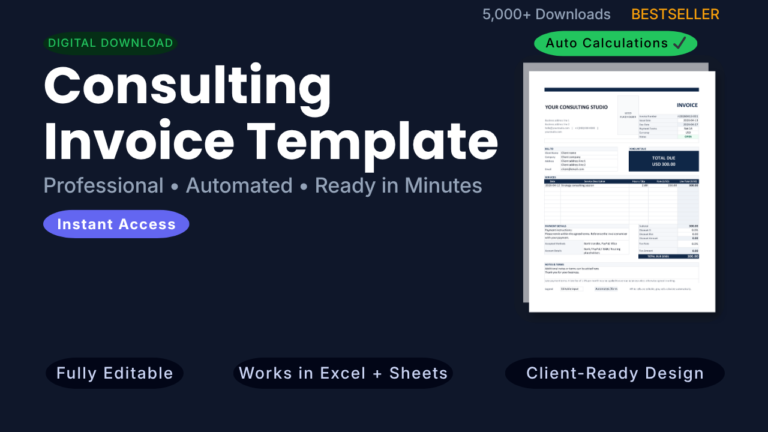
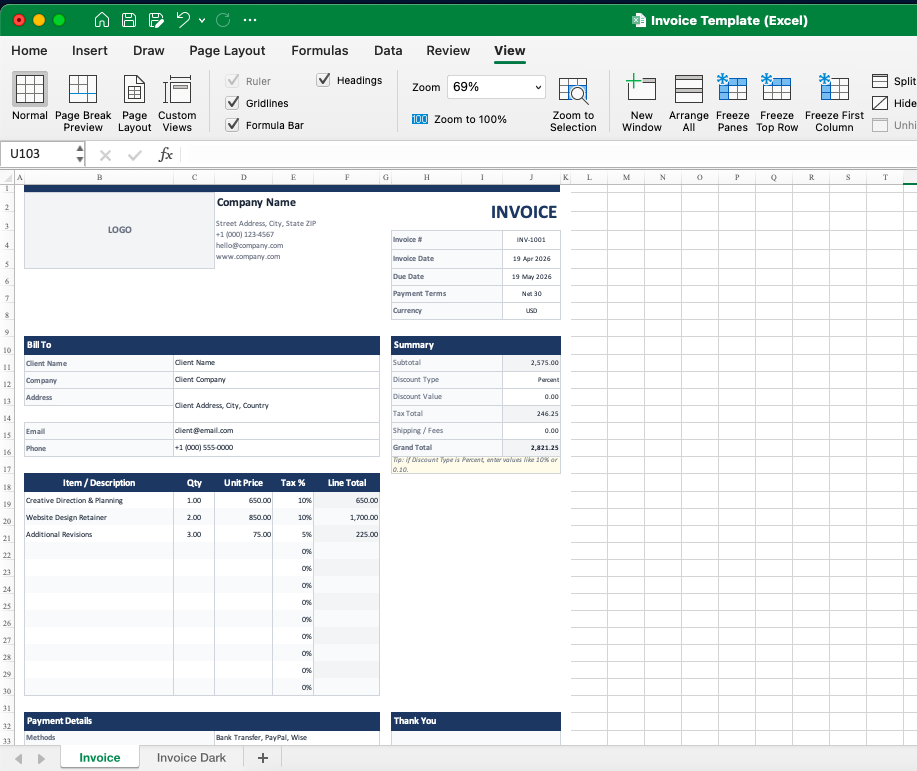
That’s exactly why I put together a ready-to-use professional invoice system with built-in formatting, calculations, and layout, so you don’t have to second-guess anything.
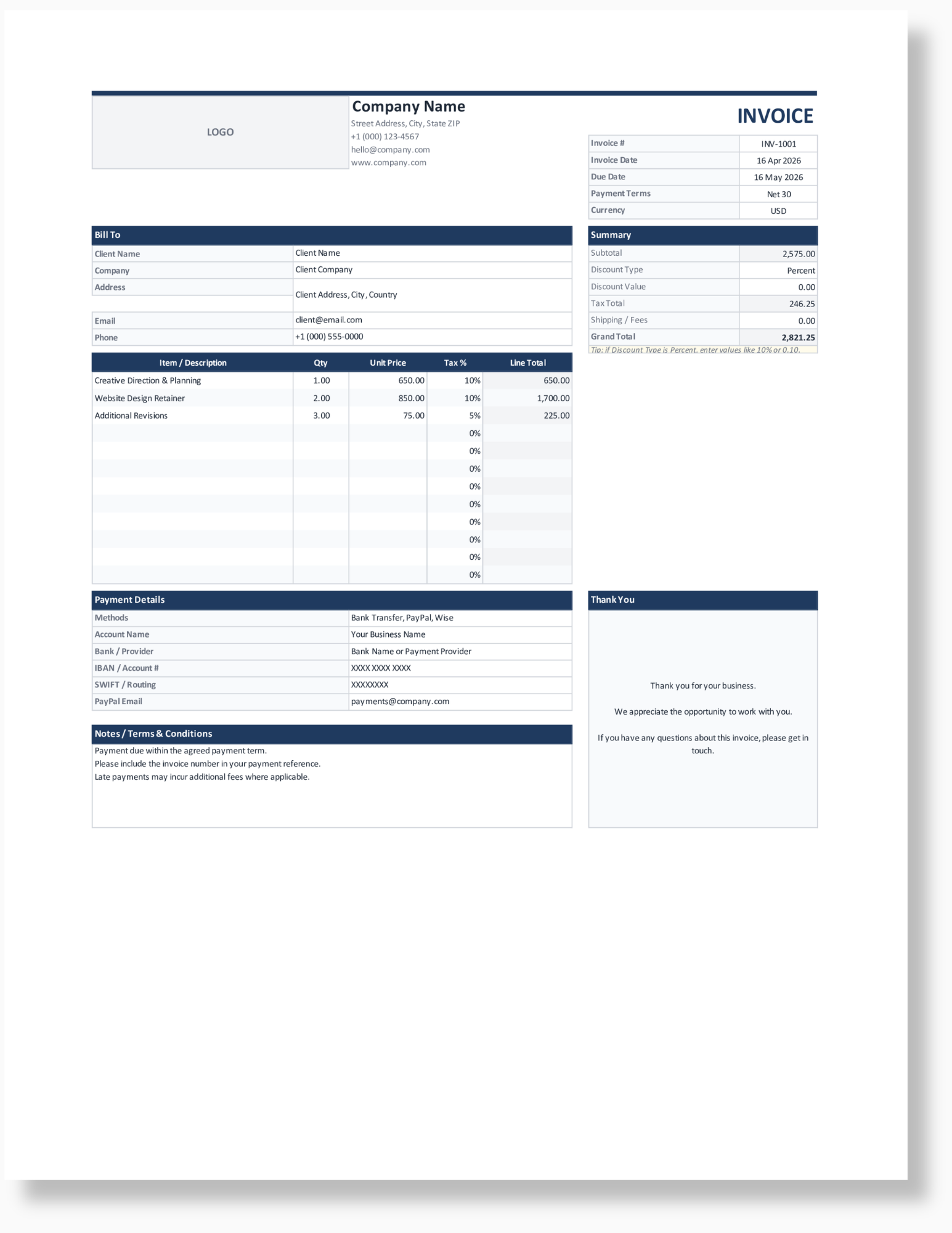
Access the exact template here: Professional Invoice Template (Excel + Google Sheets)
(You can open it in Google Sheets or Excel and start using it immediately
Essential Elements of a Professional Invoice
A professional invoice template should include the following:
1. Business Information
- Business name
- Logo
- Email, phone, address
Consistency in branding builds trust. A polished look signals professionalism before the client even reads the details.
A small detail like layout alignment or spacing can change how “legit” your invoice feels, which is why using a structured template makes a bigger difference than people expect.
2. Client Information
- Client name or company
- Contact details
Accuracy matters. One typo can delay payment or cause confusion.
3. Invoice Details
- Unique invoice number (e.g., INV-001, 2026-04-01)
- Invoice date
- Due date
A numbering system helps with tracking and accounting.
4. Itemized List of Services/Products
Break down your work clearly:
- Service description
- Quantity or hours
- Rate
- Subtotal
Avoid vague descriptions like “design work.” Instead, say “Homepage UI design – 10 hours.”
5. Pricing and Totals
- Subtotal
- Taxes
- Discounts
- Total due
Clarity here prevents disputes later.
6. Payment Terms
Examples:
- Net 7 (due in 7 days)
- Net 15
- Net 30
Include late fees if applicable. It sets expectations early.
7. Payment Methods
Make it easy to pay:
- Bank transfer
- PayPal
- Credit card
- Online payment links
More options = faster payments.
8. Notes and Additional Information
- Thank-you message
- Short reminder of terms
- Legal disclaimers if needed
A little human touch goes a long way.
Step-by-Step: How to Create a Professional Invoice
Step 1: Choose Your Format
You can use:
- Word or Excel (manual)
- A ready-made invoice template
- An online invoice generator
- Accounting software
If you’re doing this more than once a month, manual creation becomes a hidden time drain.
Shortcut: Use a pre-built invoice template that already includes formulas, formatting, and layout.
Get it here: Professional Invoice Template (Excel + Google Sheets)
Step 2: Add Branding and Layout
Include your logo, brand colors, and clean formatting. Think minimalist, not chaotic.
Step 3: Fill in Business and Client Details
Double-check everything. This is not the place for guesswork.
Step 4: Add Services or Products
Be specific and transparent. Clients should instantly understand what they’re paying for.
Step 5: Calculate Totals
Triple-check your math. Errors here destroy credibility.
Or better, don’t calculate manually at all.
A properly built template handles totals automatically, which removes one of the most common (and embarrassing) invoicing mistakes.
Step 6: Add Payment Terms
Clearly state when and how payment should be made.
Step 7: Review and Proofread
Look for:
- Typos
- Missing details
- Incorrect totals
Step 8: Send Professionally
Attach a PDF and write a short, polite email. Example:
“Hi [Name],
Please find your invoice attached. Let me know if you have any questions.
Thank you!”
Invoice Design & Formatting Best Practices
A professional invoice should look like it belongs in a premium brand, not a middle school spreadsheet.
- Use clean fonts (Arial, Helvetica, Inter)
- Stick to 1–2 colors
- Align everything neatly
- Use white space generously
Most templates online either look outdated or overly complex.
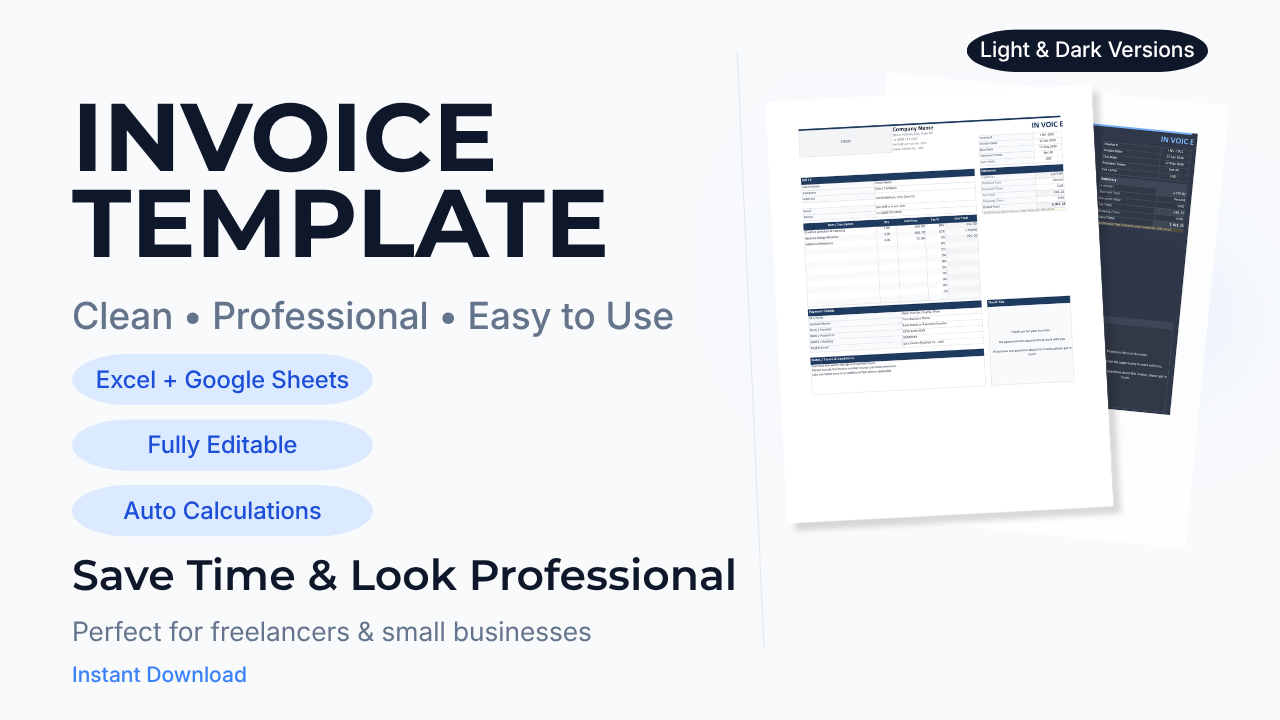
That’s why I designed one that balances simplicity and professionalism, including both light and dark styles depending on your brand preference.
If your invoice looks easy to read, it feels easy to pay.
Pricing Transparency & Clarity
Ambiguity is the enemy of payment.
- Write clear descriptions
- Break down costs where needed
- Avoid lump-sum confusion unless agreed
Example:
Bad: “Marketing services – $2,000”
Better: “SEO audit – $800, Content strategy – $1,200”
Transparency builds trust, and trust accelerates payment.
Payment Terms That Get You Paid Faster
Want faster payments? Adjust your terms strategically:
- Use shorter terms (Net 7 instead of Net 30)
- Offer early payment discounts (e.g., 2% off)
- Include late fees
- Request deposits upfront
- Use milestone payments for large projects
Recurring invoices also help stabilize income.
Tools & Software for Professional Invoicing
Manual Templates (Word/Excel)
Pros: Free, customizable
Cons: Time-consuming, prone to errors
Online Invoicing Tools
- Easy to use
- Built-in automation
- Payment integration
Accounting Software
- Advanced tracking
- Tax support
- Reporting features
What to Look For
- Automation
- Payment integrations
- Custom branding
- Recurring invoices
Automation alone can save hours every month.
If you’re not ready for full software, a well-built spreadsheet template gives you 80 percent of the benefit with almost no complexity.
Common Invoice Mistakes (and How to Avoid Them)
- Missing details → Always use a checklist
- Vague descriptions → Be specific
- Incorrect totals → Double-check
- No payment terms → Always include them
- Poor formatting → Keep it clean
- Sending late invoices → Send immediately
Most of these disappear when you’re not building invoices from scratch every time.
Professional Invoice Templates
Here are common formats you should have ready:
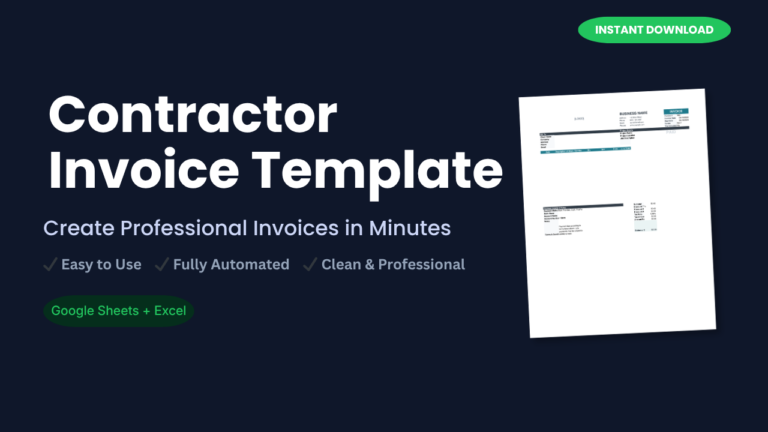
- Freelancer invoice template
- Service-based business invoice
- Product-based invoice
- Consulting invoice
- Recurring invoice
Instead of juggling multiple formats, you can use one adaptable template that covers all of these with minor edits.
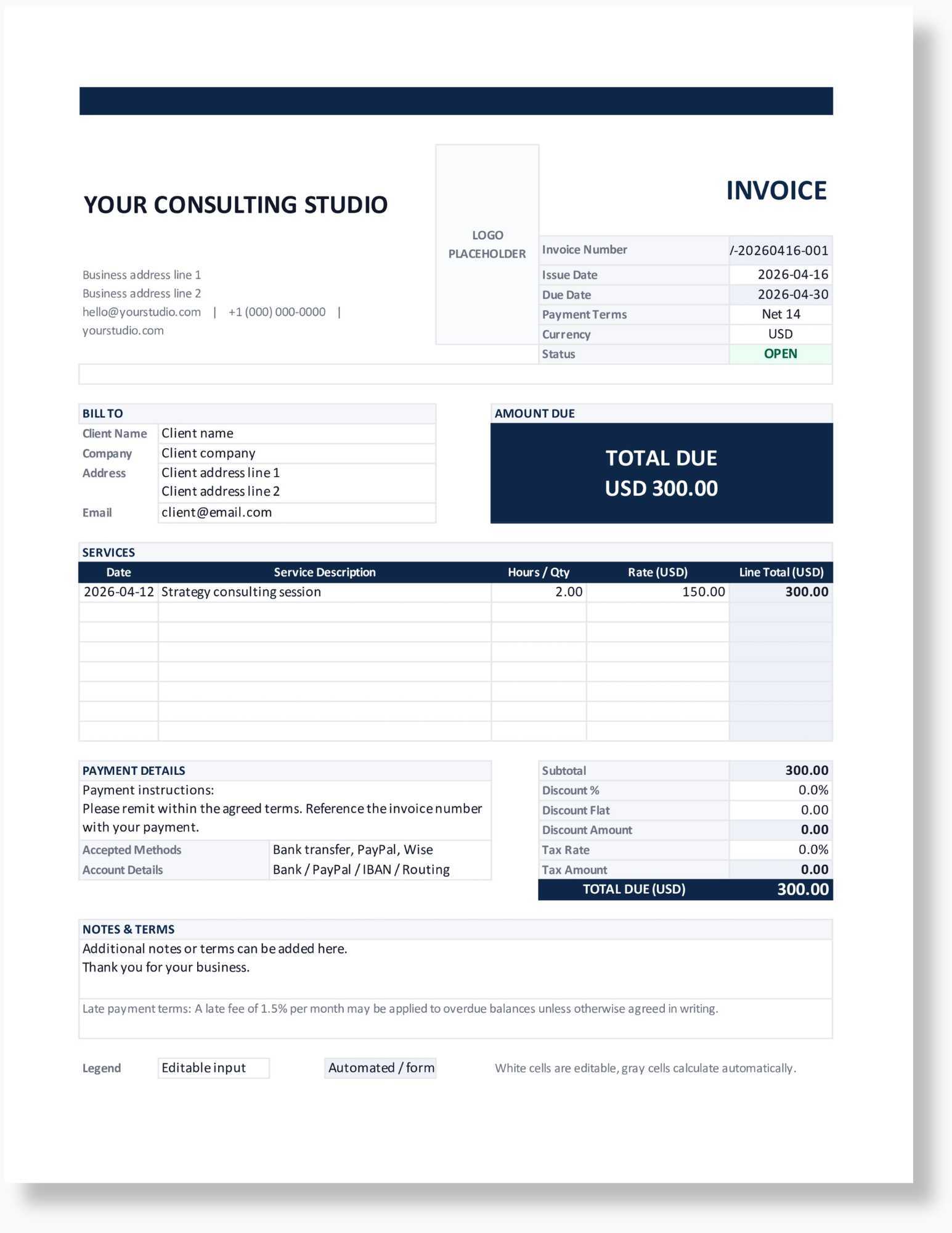
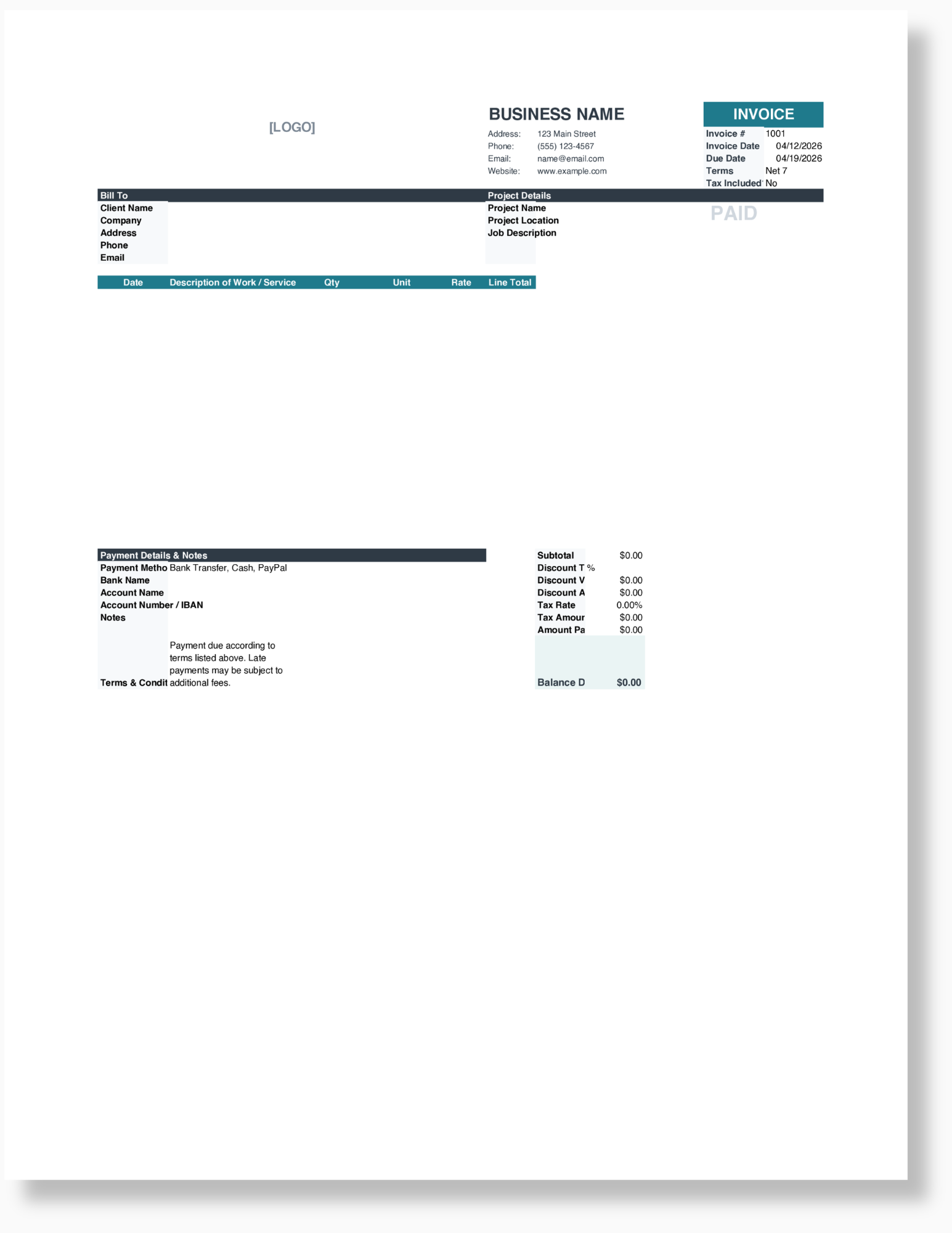
Download the full template pack here.
Using a solid invoice template saves time and ensures consistency.
Real-World Examples
Bad Invoice
- No invoice number
- Vague description
- Missing due date
- Cluttered layout
Good Invoice
- Clear structure
- Itemized services
- Professional design
- Payment options included
The difference is night and day, and so is the payment speed.
Checklist: Create a Perfect Invoice Every Time
Before sending:
- Business and client info correct
- Unique invoice number included
- Clear itemized list
- Accurate totals
- Payment terms defined
- Payment methods listed
- Clean formatting
- Proofread
Or simply use a system where all of this is already built in for you.
Wrapping Up
Creating a professional invoice isn’t complicated, but it does require intention.
When you combine clarity, strong design, transparent pricing, and smart payment terms, you remove friction, build trust, and get paid faster.
Most people treat invoicing as an afterthought. That’s exactly why you shouldn’t.
If you’re still manually creating invoices or second-guessing your format, it’s time to upgrade.
Get the exact invoice template used in this guide: Professional Invoice Template (Excel + Google Sheets)
It’s designed to be simple, professional, and ready to use in minutes, whether you prefer Excel or Google Sheets.